How to check a badge with this validator, step by step
Check a badge file or URL, read the eleven validator checks, distinguish a missing payload from a failed proof, and know when to contact the issuer.
Verify Open Badge · Oct 16, 2026 · 8 min read
You have been sent a badge and want to know what the issuer actually signed. This guide walks through the public validator, using the same screens you will see. It checks Open Badges 3.0 credentials, including the supported VC 1.1 and VC 2.0 profiles. A legacy Open Badges 2.0 assertion needs a validator that supports 2.0; a failed result here does not by itself mean the older badge is fake.
Step 1: get the credential, not a screenshot
Use the original badge download from the issuer, the credential document (.json, .jsonld, .jwt, or .vc), or a direct URL that returns one of those. A PNG or SVG works if the credential was baked into it. Some issuers distribute an unbaked image alongside a separate credential; the image alone cannot prove the claim.
A screenshot and an image saved from a social post are not useful inputs. Re-encoding frequently strips the embedded data. Ask the sender for the original issuer download or a direct credential link. If a page shows a badge but gives you no file, look for "Download credential" or "Export" before copying the page address.
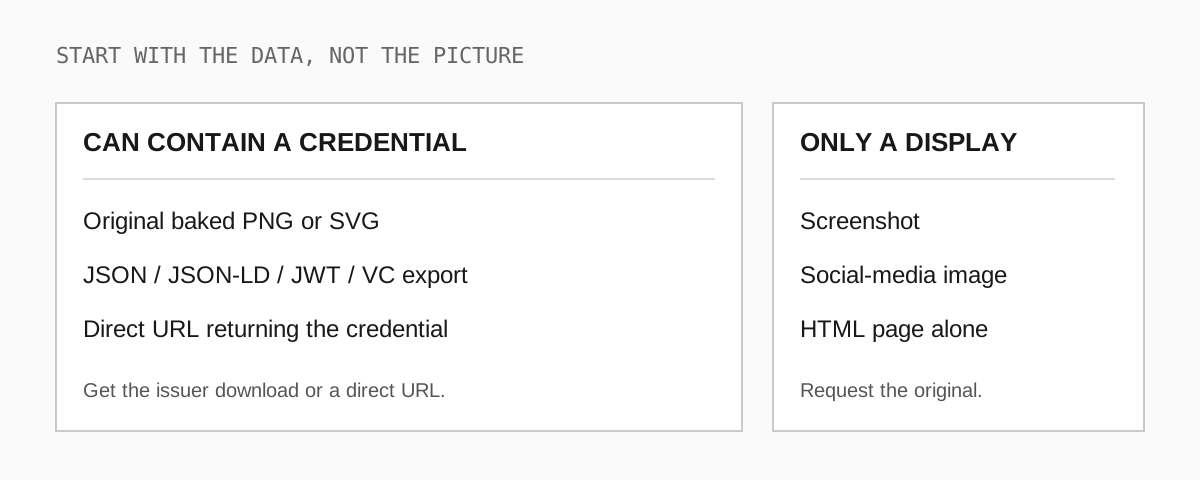
Open the input comparison at full size.
If an issuer provides both an image and a .json or .jwt download, keep the document as well. The image may be meant only for display. Renaming badge.jpg to badge.png does not add a payload. If you have a text file, do not paste its contents into a new document unless you have no other option: a truncated JWT or one character changed in a signed credential can invalidate it. Save the original download untouched.
Step 2: upload a file or paste a URL
Open the validator. The form has two inputs:
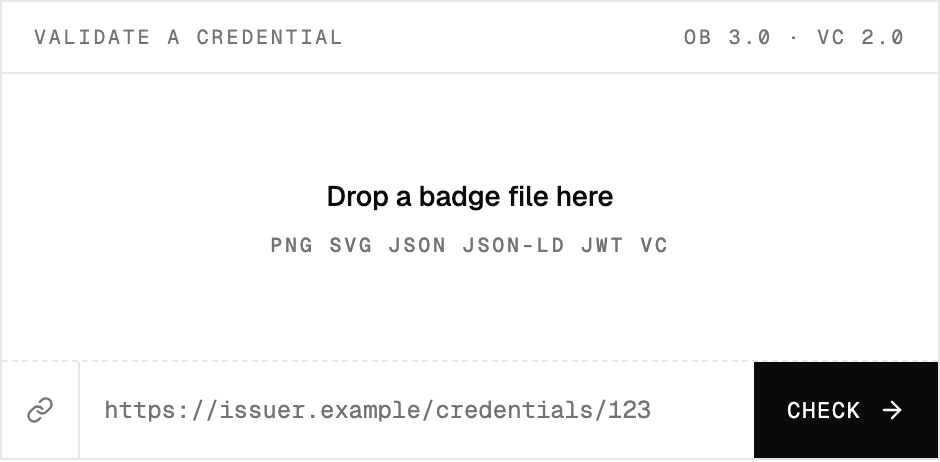
- File: drop one file into the area or click to select it. Validation starts immediately. The upload limit is 5 MB; a PDF is not an accepted badge format.
- URL: paste a public, directly fetchable credential URL and press Check. A landing page that returns HTML, a URL behind a login, or an issuer's private dashboard may not return a credential. If it fails, use a download from that page instead. The remote input limit is 10 MB.
The URL fetch has a 10-second timeout and follows at most five redirects. Verification may also fetch contexts, keys, issuer information, evidence, or status lists referenced by the credential. One slow dependency can make the whole request take longer than ten seconds.
Which route should you choose? Use a file if the issuing page needs a login, if a URL keeps redirecting, or if you want to check the precise copy sent to you. Use a URL if you have a direct public credential endpoint and want the issuer's current representation. These routes can disagree when a hosted document has been replaced but an old downloaded copy has not; keep both results and ask the issuer why rather than silently choosing the green one. Neither route makes a public HTML page into a credential.
Step 3: identify what the result actually says
Here is an example of a valid JWT badge. The screenshot uses an example issuer and is there to explain the interface, not to prove that issuer exists.
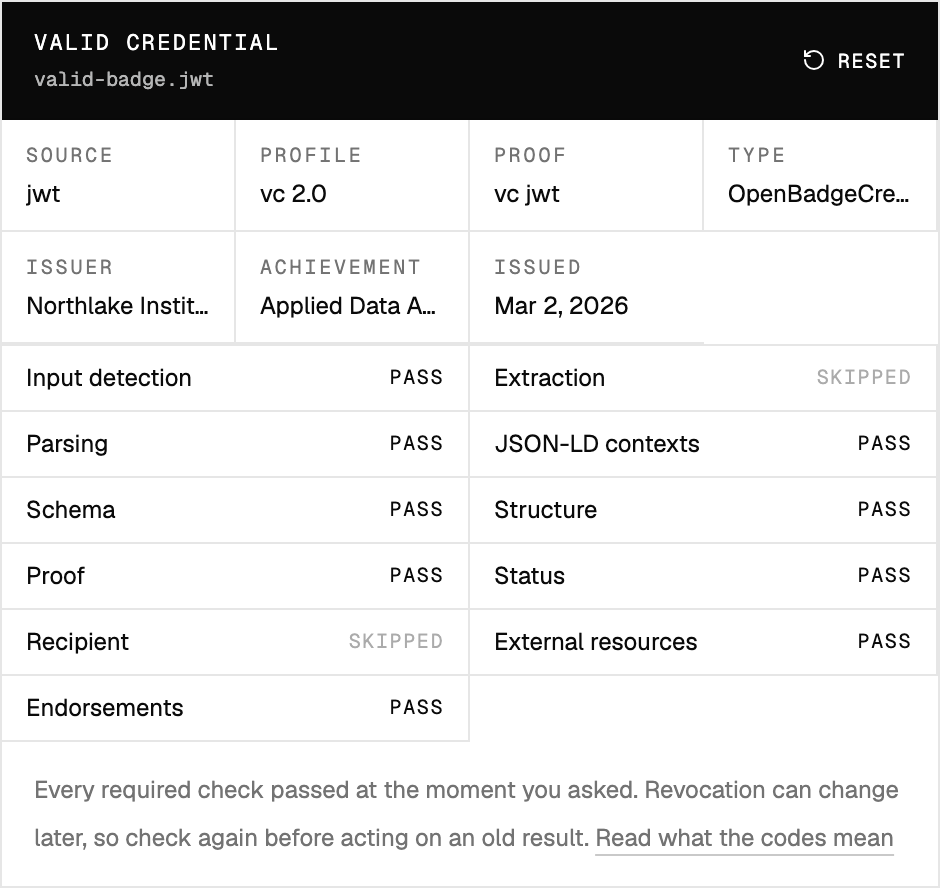
Read it from top to bottom:
- Verdict and source: "Valid credential" applies to the file or URL shown immediately below it. If you are checking multiple badges, confirm you did not leave an earlier result on screen.
- Facts: Source is the format detected, Profile is the VC version, Proof is the mechanism, followed by the type, issuer, achievement, and available dates. Long names can be truncated in the compact cards. Do not decide whether you trust an issuer from the first few letters of a name; use the original credential or issuer website to confirm the full identity.
- Checks: input detection, extraction, parsing, JSON-LD contexts, schema, structure, proof, status, endorsements, external resources, and recipient. Each has its own PASS, FAIL, or SKIPPED label.
A skipped check is not a pass
A skipped check is context-dependent, not a green tick. In this screenshot, Extraction is skipped because the input is a JWT, not a baked image. Recipient is skipped because the public form does not ask who you expect the badge to belong to. A missing optional feature, such as an endorsement or a status list, cannot be treated as though it was positively verified; inspect the individual check and the underlying credential if that matters to your decision.
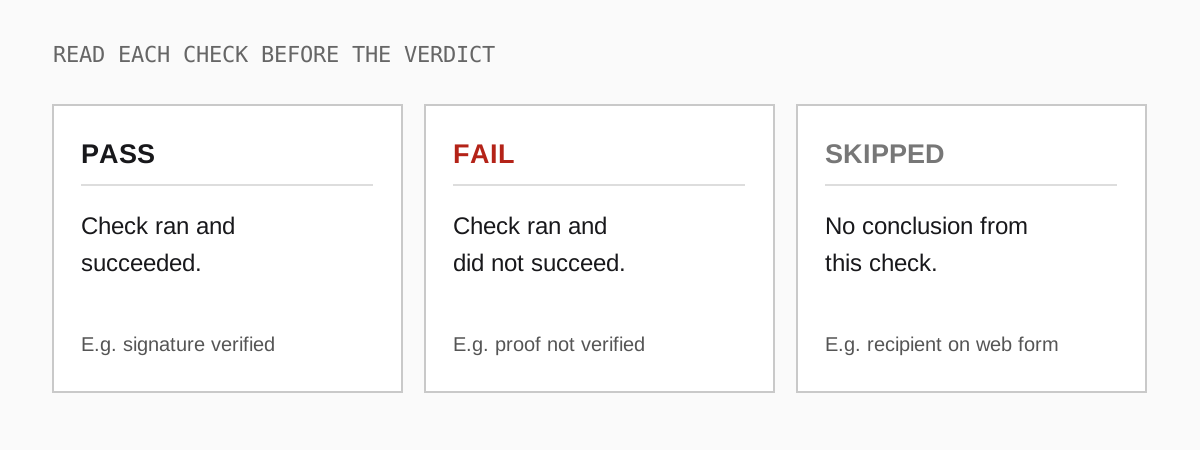
Open the check-status key at full size.
The list is also a debugging map. Input detection, extraction, and parsing tell you whether the validator could get usable data out of your file. JSON-LD contexts, schema, and structure tell you whether the data matches a recognised credential shape. Proof, status, endorsements, and external resources examine supporting claims and dependencies. Recipient is a separate comparison against an expected identity; the public form does not make that comparison. You can have a PASS for parsing and a FAIL for proof, exactly as the next screenshot shows.
The green verdict is a technical result at the time of the check. It does not confirm that the issuer is reputable, that the subject is your applicant, or that the assessment was rigorous.
Step 4: read a failed check and its code
This sample was parsed, but did not contain a proof the verifier could use:
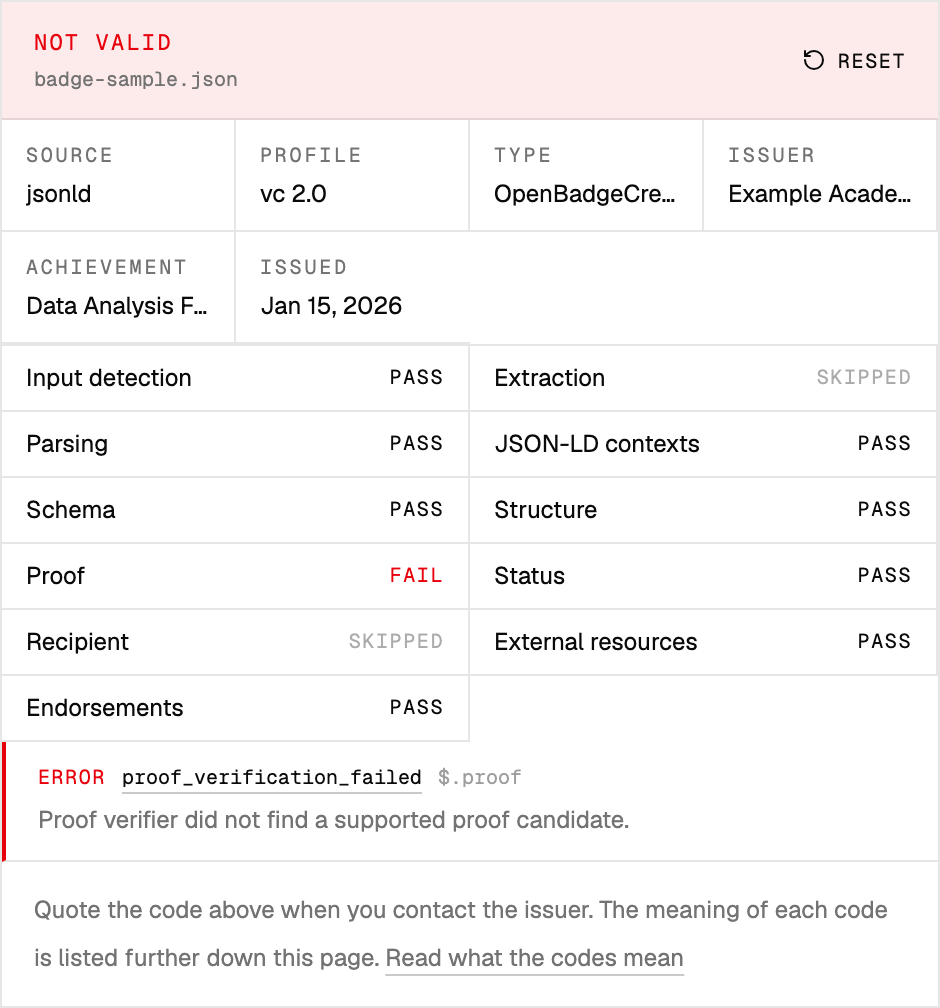
The Proof row failed. The issue below it reports proof_verification_failed at $.proof and says "Proof verifier did not find a supported proof candidate." The code groups proof failures; this particular screenshot does not demonstrate that somebody tampered with a signature. There might be no proof, an unsupported proof, or a signature that does not verify. The message and path tell you more than the code alone.
Match the failure to the next action
Use this quick triage before contacting anyone:
missing_baked_payload: the PNG or SVG contains no credential. Get the original download, a JSON/JWT export, or a direct credential URL. Re-uploading the same screenshot will not help.input_fetch_failed: the URL could not be fetched. Try opening it without logging in, or download the credential and use the file route. A fetch failure is not a verdict on the badge.proof_verification_failedorverification_method_not_resolved: the verifier could not establish the proof. Preserve the original file and the message; ask the issuer through a channel you already trust. Do not accept the claim on the strength of the image alone.credential_revoked,credential_suspended, orcredential_expired: the credential cannot be treated as currently in force. Expiry does not erase the historical achievement; the issuer can explain its policy.external_resource_unreachable: a linked image, evidence item, or profile might be down. Check whether proof and status succeeded before deciding how much the missing link matters.
The result codes reference has a suggested next step for each code. Click the code in the report to jump directly to its entry.
For a failing report, keep three separate pieces of information when asking for help: the code, the document path (such as $.proof), and the message. A code may name the failing check without saying why it failed. If the proof cannot be resolved, retry once later in case the key host is temporarily down; if it still fails, contact the issuer. If the error is missing_required_field or schema_validation_failed, send the path to the issuing platform so they can fix the export. Do not alter a signed credential in a text editor to make it pass: changing the data can invalidate its proof.
Step 5: make the human decision
When a result passes, compare the issuer with a source outside the badge: the institution's official website or a contact you already know. Read the criteria. If you are checking someone's qualification for a role, confirm the credential actually refers to that person. The public form does not perform recipient matching for you. A subject field can be pseudonymous or hashed; if identity matters, request an appropriate way to link the holder to the credential rather than guessing from the badge image.
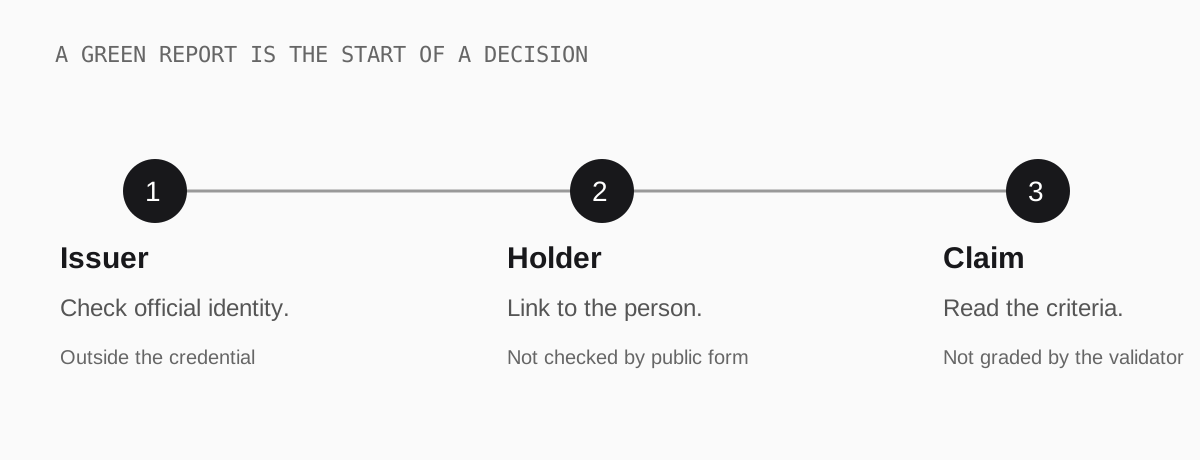
Open the human checks at full size.
Here is a concrete hiring example. A candidate sends a badge called "Applied Data Analysis." The proof verifies and the badge is not expired. The issuer turns out to be a training vendor, not the university whose logo appeared beside it on a profile; the criteria describe attendance, not a passed assessment. The report has done its job: it identified the real issuer and checked the credential. You still have to decide whether attending the course meets the role's requirements. If the subject is only a hashed identifier, ask the candidate for the issuer's holder-verification route or an appropriate presentation. Do not assume the issuer printed the candidate's public email in the credential.
For a high-stakes decision, record the credential identifier, which file or URL you checked, the result, and when you checked it. Status or expiry can change tomorrow. Avoid storing unnecessary personal details in a shared spreadsheet.
If you need to call the same checker from a script
The public form uses POST /validate/file with multipart field file, and POST /validate/url with JSON field url. For example:
curl -sS -F 'file=@badge.jwt' https://verifyopenbadge.com/validate/file
curl -sS -H 'Content-Type: application/json' \
  -d '{"url":"https://issuer.example/credentials/123"}' \
  https://verifyopenbadge.com/validate/url
Replace the example file and address with a credential you have permission to check. The response includes valid, the individual checks, and any errors and warnings. A failed validation can return HTTP 422 with a full JSON report; do not throw that body away or treat every 422 as a network error. If you automate a decision, check the valid field and the checks your workflow depends on; distinguish 422 from a 400 malformed request and a 413 oversize upload. Do not equate a successful HTTP 200 with "I trust this issuer." These endpoints are suitable for occasional checks, not an unstated bulk service commitment. Contact us before using them at volume.
Privacy and stalled requests
Files are processed in memory for the request; the site does not retain an uploaded copy. But validation can require requests to third-party hosts for contexts, keys, status lists, and evidence. Those hosts can see a request, and a URL containing a recipient identifier may reveal information in the path. If confidentiality matters, check your organisation's policy before uploading or fetching a credential through a public service.
If no report appears, try the other input route: download the credential and upload the file instead of submitting the URL, or use a direct credential URL instead of a problematic image. If it still stalls, send us the format and what happened. Share the file only if you are allowed to disclose it.