How to validate an Open Badge before you trust it
An Open Badge validation workflow: choose the right format, inspect proof and status, check issuer and holder identity, then record your decision.
Verify Open Badge · Jul 21, 2026 · 6 min read
A candidate sends a badge image copied from a social profile. It looks official, but the image could be somebody else's or a version with the credential data removed. You need the original export, a checker for its format, and a way to decide what the result means for this candidate. Here is the workflow we would use.
1. Ask for the original credential
Request the file downloaded from the issuer or a direct URL that returns the credential. Common exports include a JSON or JSON-LD file, a JWT, and a PNG or SVG with a credential baked inside it. A screenshot, a JPG saved from a post, and an HTML landing page do not let a verifier check a credential by themselves.
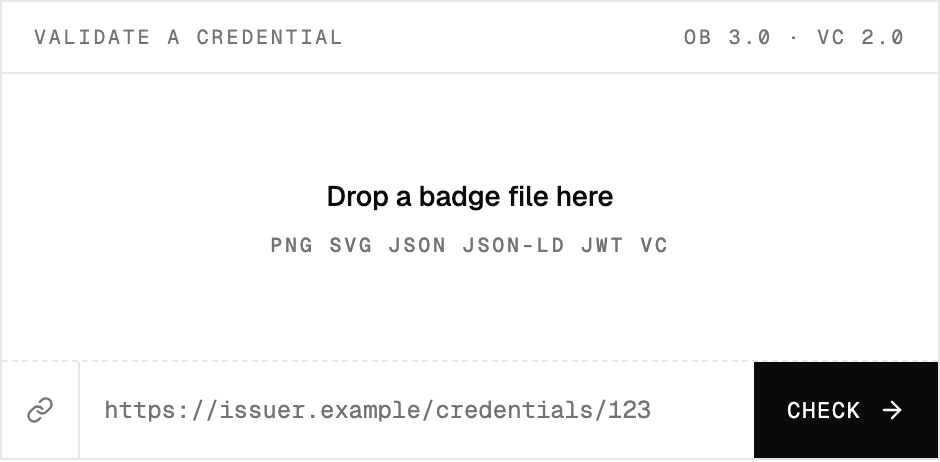
Open the validator form screenshot at full size.
Use the file or URL input with the original item. If the issuing page requires login, download the export and use the file route; the URL checker cannot sign in for you. A public badge page can be useful to a human, but a URL that returns HTML is not the same as a URL serving a credential. If a sender has only an unbaked PNG, ask for the separate JSON/JWT download. Do not edit an export to make it validate. Even a small change to protected data can invalidate its proof.
Keep a copy of what you checked, or a checksum and an approved internal reference if storing the credential is unnecessary. The version currently hosted at a URL can change after your decision.
2. Identify which Open Badges version you have
The current Open Badges 3.0 specification describes an AchievementCredential built on the Verifiable Credentials model. A 2.x badge uses an Assertion referencing a BadgeClass and issuer Profile; it may be hosted or signed. The two formats require different validation procedures.
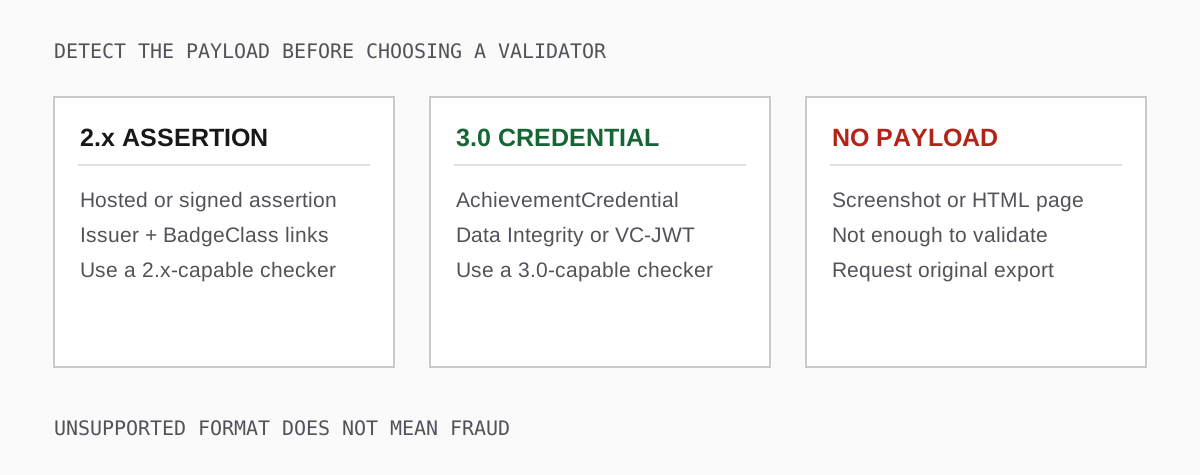
Open the format-routing guide at full size.
This site's validator checks Open Badges 3.0, including the supported VC 1.1 and VC 2.0 profiles. An unsupported 2.x result here does not mean the badge is counterfeit: use a checker that explicitly supports its version. Conversely, a file extension alone is not a reliable version detector. A baked PNG can contain badge data from either generation. Inspect the decoded credential and its detected profile before you interpret any error.
For 2.x hosted assertions, check whether the issuer still serves the assertion and whether its recipient, dates, badge class, and issuer details are consistent. For signed 2.x assertions, check its signature with a 2.x-capable tool. Neither route makes a familiar-looking icon authoritative. If the issuer has shut down its hosted assertion endpoint, report that the assertion cannot currently be checked rather than calling it fake.
3. Read the checks behind the verdict
Here is an example of the real report UI for a valid 3.0 JWT. The example issuer in the screen is illustrative, not an independently verified institution.
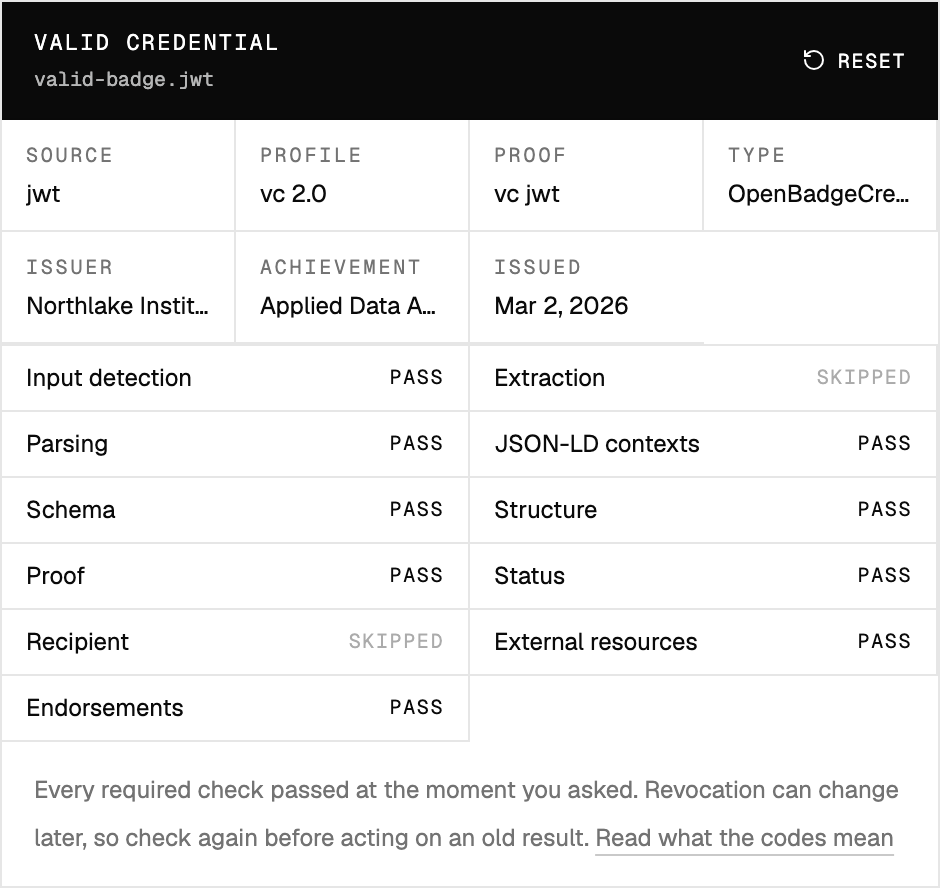
Open the passing report screenshot at full size.
A PASS means that particular check ran and succeeded. FAIL means it ran but did not succeed. SKIPPED means the check did not establish a conclusion. In the example, extraction is skipped because there is no baked image to extract; the public form's recipient check is skipped because it was not given an expected recipient. A status check also needs to be read in context: check whether an actual status entry was present and consulted rather than treating a skipped or inapplicable check as a clear revocation result.
If proof fails, inspect the details
Look at the detected format, profile, proof type, issuer, and dates. If the proof fails, preserve the file and read the error message and document path, not only the code. A proof failure may reflect an unsupported proof, an unreachable key, a missing proof, or an actual signature mismatch. Do not decide which from a red icon alone.
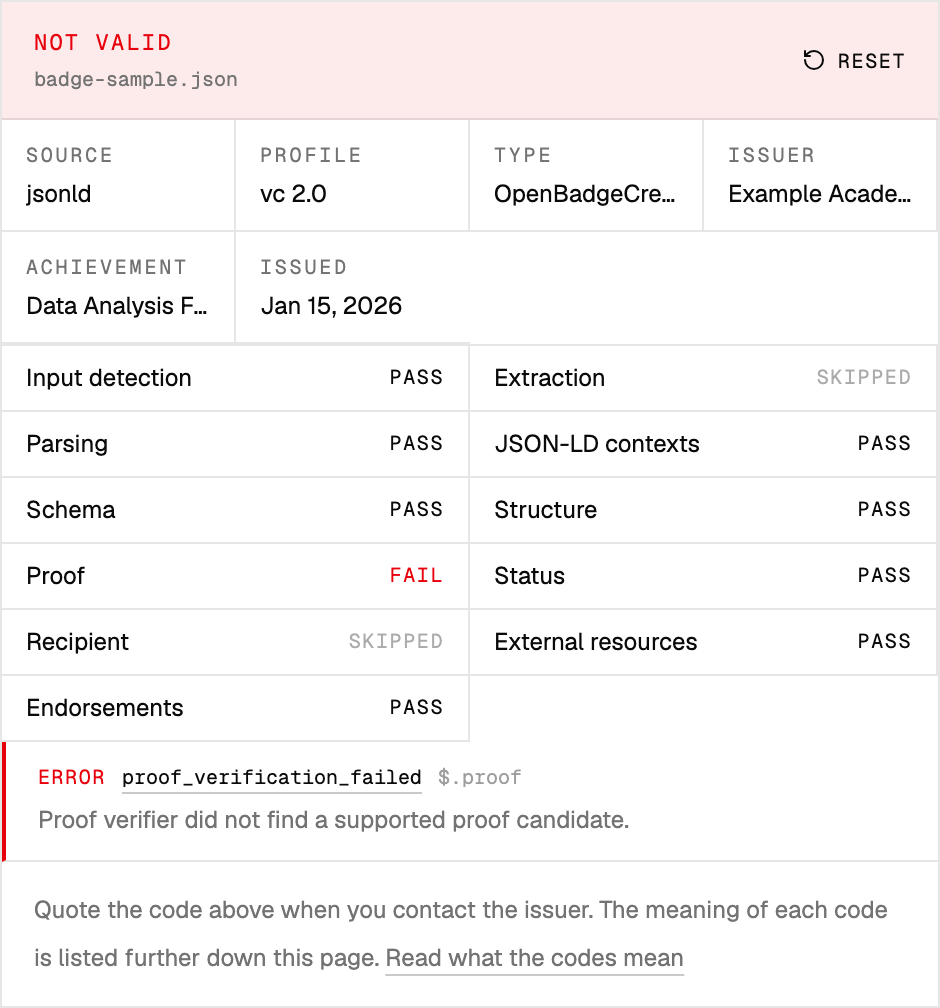
Open the failed-proof screenshot at full size.
The screenshot above is not evidence of tampering. It says the verifier did not find a supported proof candidate. Ask the issuer for an export with a verifiable proof, or check whether its chosen proof is supported by another conforming tool. The result-code reference lists next steps for each issue type.
4. Separate proof, issuer identity, and holder identity
A cryptographic proof says which verification method signed the protected data. It cannot tell you whether you would hire someone from that issuer or whether the person sharing the file earned the badge.
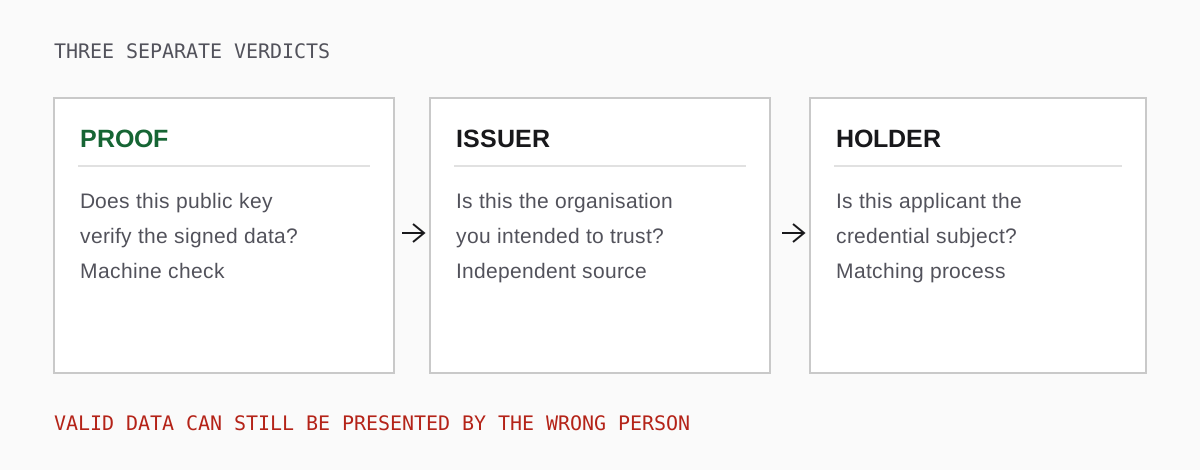
Open the three-question diagram at full size.
Check the issuer outside the file. Follow the issuer identifier and compare it to a website, registry, or contact channel you found independently. If the credential claims to come from a university, use the university's official site to confirm its issuing domain or ask its credential office. Do not trust a logo, a display name, or a link that appears only inside the credential.
Match the holder. Compare the subject identifier to the candidate through an appropriate process. A printed name alone may collide with another person's. A hashed email cannot be reliably checked without the issuer's matching method and any salt. Control of a DID key can be demonstrated with a challenge, but you must still connect that key to the applicant. The public form does not perform this human matching step. If the position requires a regulated qualification, get a holder-to-person match from the issuer or a trusted identity process before treating the badge as sufficient evidence.
5. Decide what a date or status result means
Dates and withdrawal status answer different questions. A badge issued last year might have expired yesterday because the qualification requires renewal. A badge within its validity window might have been revoked because it was issued in error.
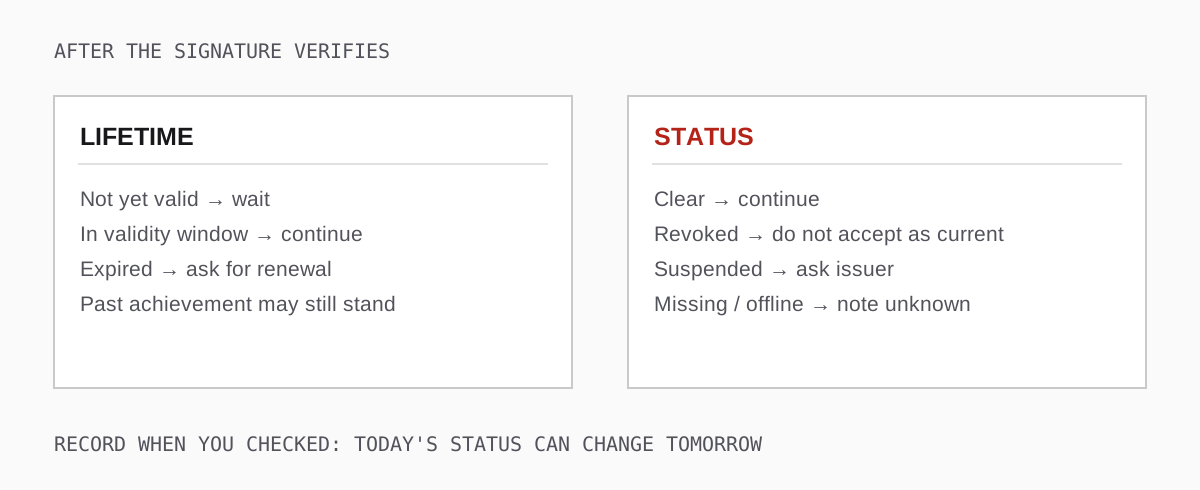
Open the dates-and-status guide at full size.
When provided, a status reference can point to a Bitstring Status List that the verifier consults at the time of checking. Interpret outcomes separately:
- Revoked: do not accept the credential as current. Only the issuer can explain why it withdrew it or whether a replacement exists.
- Suspended: ask the issuer whether this is temporary and when another check is appropriate.
- Expired: the achievement may still be historically true, but the current qualification may need renewal. Compare with the requirements of your decision.
- No status reference or list unavailable: you have not established the credential's current withdrawal status. Note the limitation; retry an unavailable list or request an issuer confirmation if the stakes justify it.
The signature can verify in all four situations. A screenshot of a positive check from last month does not establish today's status.
6. Read the claim, then record your decision
Read the achievement name, criteria, and any evidence. A badge for attending a workshop is useful evidence of attendance; it is not evidence of passing an assessment. Check whether the published criteria still describe the cohort that earned this version of the badge. If evidence links contain private work, follow your organisation's access and retention rules rather than copying the contents into a ticket.
Imagine two candidates show the same technically valid "Data Analysis" badge. One file's criteria specify a scored project and a reviewer; the other's describe completion of a video series. Both may be authentic. Only one might meet an assessed-skills requirement. This is a hiring decision, not a cryptographic one.
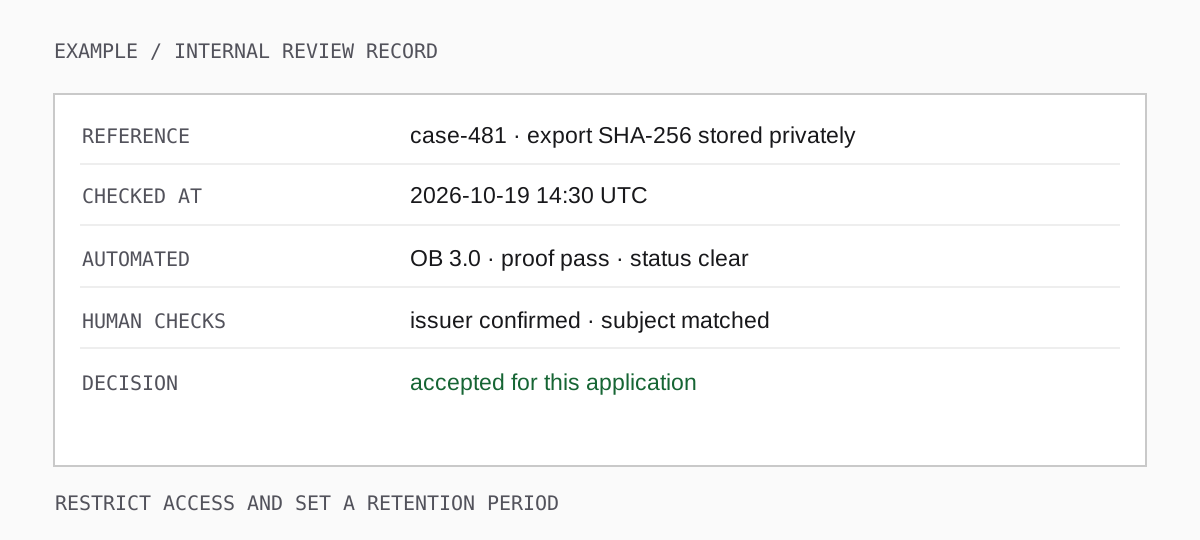
Open the sample decision record at full size.
For an auditable decision, record when you checked, which file or URL (or a checksum of the export), the detected format, the individual proof and status result, how you confirmed the issuer and holder, and why the achievement meets your requirement. Restrict access and set a retention period. Avoid pasting a credential containing personal information into a public issue tracker or attaching it to an unrestricted spreadsheet. A record like the example is an illustrative internal template, not a claim that this site stores your results.
Quick triage when the check fails
missing_baked_payloadorinvalid_png: request the original export; do not keep uploading a social-media copy.unsupported_input_format: confirm the badge version and use an appropriate checker before judging authenticity.proof_verification_failedorverification_method_not_resolved: keep the original and the full message; ask the issuer through a separately verified contact channel. A key-host outage may be temporary, but the proof has not been established in this check.credential_revoked,credential_suspended, orcredential_expired: do not treat it as a currently valid qualification without clarifying the issuer's policy.external_resource_unreachable: identify which resource failed. A missing image is different from a missing verification method or status list.
If you need the exact clicks and an annotated walk-through of the UI, see how to use this validator. For automated occasional checks, the file and URL API examples in that guide also explain why an HTTP 422 can contain a useful full validation report. If a decision depends on status, rerun it close to the decision time.